

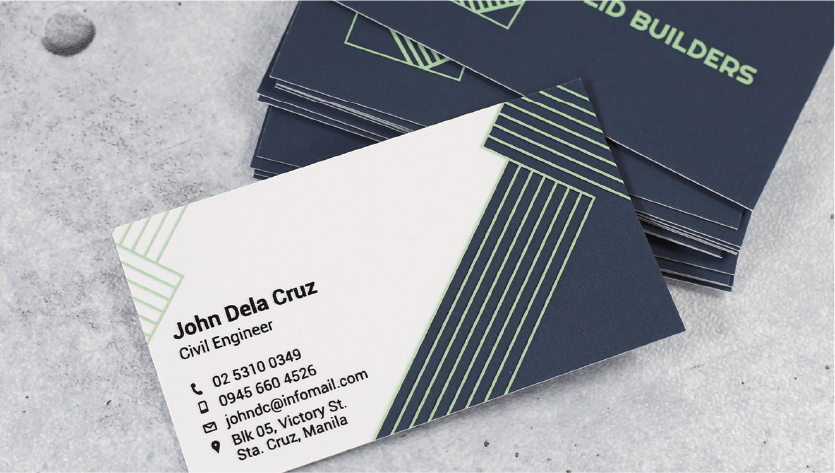
A business card may be small, but it can play an important role in how people remember you and your business. Whether you’re a freelancer, entrepreneur, employee, consultant, or small-business owner, a well-designed card gives potential clients an easy way to save your contact information.
Creating one no longer requires expensive design software or professional graphic design experience. A business card maker can help you build a polished design using templates, drag-and-drop editing tools, icons, fonts, colors, and image options.
The challenge is choosing the right information and design rather than simply filling the card with as much content as possible. A strong business card should be easy to read, visually balanced, and consistent with your brand.
This guide explains how business card makers work, what information to include, how to choose a design, common mistakes to avoid, and how to prepare a card for printing or digital sharing.
What Is a Business Card Maker?
A business card maker is a design application or online tool that allows users to create customized business cards. Instead of designing everything from a blank canvas, you can often select a ready-made template and modify it to suit your business.
Typical customization options include:
- Name and professional title
- Company name
- Business logo
- Phone number
- Email address
- Website
- Physical address
- Social media information
- Brand colors
- Fonts and typography
- Icons and graphics
- Backgrounds and shapes
- QR codes
Many platforms are designed for beginners, so you don’t need extensive knowledge of graphic design. You can choose a template, replace the sample information, adjust the layout, and export the finished design.
Why Use an Online Business Card Maker?
Traditional business card design can involve hiring a designer or learning complicated software. An online business card maker provides a simpler alternative for people who need a professional result quickly.
1. Easy to Use
Most online design tools use straightforward editing interfaces. You can select elements, move them around, change colors, and edit text without specialized design skills.
2. Ready-Made Templates
Templates provide a useful starting point. Instead of wondering where to place your logo or contact details, you can begin with a professionally structured layout.
3. Customization
A template doesn’t have to determine your final design. You can normally customize the:
- Font style
- Font size
- Colors
- Logo placement
- Background
- Text alignment
- Contact details
- Decorative elements
4. Cost Efficiency
For individuals and small businesses, an online tool can be more affordable than hiring a designer for a simple business card project.
5. Faster Design Process
If you already know your business information and preferred style, you can create a basic card relatively quickly.
What Information Should a Business Card Include?
The best business cards contain enough information to help someone contact you without becoming overcrowded.
| Element | Purpose |
| Full Name | Identifies you |
| Job Title | Explains your role |
| Company Name | Establishes your business identity |
| Logo | Supports brand recognition |
| Phone Number | Provides direct contact |
| Email Address | Offers professional communication |
| Website | Gives access to more information |
| Social Profile | Supports online networking |
| QR Code | Provides quick access to a website or profile |
You don’t necessarily need every item. Choose information based on how people normally contact you.
For example, a freelancer might use:
Sarah Ahmed
SEO Consultant
ABC Digital Solutions
Phone: +1 XXX XXX XXXX
Email: hello@example.com
Website: example.com
A restaurant owner may prioritize a website, location, social media profile, and QR code instead.
How to Create a Business Card Step by Step
Creating a professional card becomes easier when you approach the process systematically.
Step 1: Choose a Business Card Maker
Select a tool that offers the features you need. If you’re creating your first card, look for an interface with templates and simple customization controls.
Step 2: Select a Template
Choose a layout that matches your industry and brand personality.
A corporate company might prefer a clean and minimal design, while a creative professional may use more distinctive typography or visual elements.
Step 3: Add Your Business Information
Replace placeholder text with your actual details. Check every spelling, phone number, email address, and website address carefully.
A beautiful card with incorrect contact information can create a poor impression.
Step 4: Add Your Logo
If your business has a logo, place it where it remains visible without competing with your name and contact information.
Use a high-quality version of the logo whenever possible.
Step 5: Customize Colors and Fonts
Use colors that fit your existing brand identity. Avoid using too many colors simply because the design tool makes them available.
The same principle applies to fonts. One or two complementary typefaces are usually easier to read than several unrelated styles.
Step 6: Check the Layout
Look at the card as a complete design. Make sure important information has enough space around it.
Pay attention to:
- Alignment
- Spacing
- Text size
- Contrast
- Logo proportions
- Visual hierarchy
- Overall balance
Step 7: Proofread Everything
Before exporting or ordering prints, carefully verify every detail.
Check:
- Name spelling
- Job title
- Phone number
- Email address
- Website URL
- Social media username
- Company name
Step 8: Export the Design
Choose an appropriate file format based on how you intend to use the card. For professional printing, follow the printer’s specifications for dimensions, resolution, bleed, and file format.
Choosing the Right Business Card Design
A good design should communicate professionalism within a few seconds.
Keep It Simple
Minimal designs often work well because the reader can immediately identify the most important information.
Avoid filling every empty space with icons, graphics, slogans, or decorative elements.
Create a Clear Visual Hierarchy
Your name and company should generally receive more visual attention than secondary information.
For example:
John Smith
Marketing Consultant
Company Name
Phone | Email | Website
This structure makes the information easier to scan.
Use Readable Fonts
Decorative fonts can look attractive in a template preview but become difficult to read at small sizes.
Choose fonts that remain clear when printed.
Maintain Brand Consistency
If your website and social profiles use specific colors and typography, consider using similar visual elements on your business card.
Consistency helps people recognize your business across different channels.
Digital vs. Printed Business Cards
Business cards are no longer limited to physical paper.
Printed Business Cards
Printed cards remain useful at:
- Conferences
- Business meetings
- Networking events
- Trade shows
- Local events
- Client meetings
They give people something physical to keep after an introduction.
Digital Business Cards
A digital card can be shared through messaging apps, email, websites, or QR codes. It’s particularly useful for remote professionals and people who frequently connect online.
A digital version can also be updated more easily than a batch of printed cards.
Which Should You Choose?
For many professionals, using both can be practical. A printed card can support face-to-face networking, while a digital version makes online sharing convenient.
Common Business Card Mistakes
Even a simple design can go wrong if basic principles are ignored.
Too Much Information
Trying to include every possible detail can make the card difficult to read.
Focus on information that helps people identify you and contact you.
Poor Contrast
Light gray text on a white background or dark text on a dark background can reduce readability.
Make sure text stands out clearly from its background.
Low-Quality Images
A blurry logo or pixelated photograph can make an otherwise professional card look unfinished.
Use high-quality images suitable for the final output size.
Inconsistent Branding
Using colors and fonts that don’t match your website or company materials can make your branding feel disconnected.
Ignoring Print Requirements
A design that looks correct on screen may require adjustments before printing. Check the printer’s requirements for card dimensions, bleed, safe areas, and resolution.
Forgetting Mobile Users
If you’re creating a digital card, make sure links and contact details are easy to tap and use on smartphones.
Features to Look for in a Business Card Maker
Not every design platform offers the same capabilities. Consider these features when choosing one:
- Professional templates
- Drag-and-drop editing
- Custom dimensions
- Logo upload
- Font customization
- Brand color controls
- Image editing
- QR code support
- Digital export
- Print-ready downloads
- High-resolution output
- Multiple design versions
- Easy editing and duplication
If you’re creating cards for a team, features such as reusable brand elements and duplicate designs can also save time.
Business Card Design Example
Imagine you’re creating a card for a freelance web developer.
A simple front could contain:
Michael Brown
Web Developer
Brown Web Studio
Phone: +1 XXX XXX XXXX
Email: michael@example.com
Website: example.com
The reverse side could contain the company logo and a QR code leading to the developer’s portfolio.
This approach keeps the card focused while giving the recipient enough information to take the next step.
Key Takeaways
- A business card maker simplifies professional card design.
- Templates can help beginners create attractive layouts quickly.
- Include essential contact information rather than overcrowding the design.
- Use readable fonts and strong contrast.
- Keep your business card consistent with your existing branding.
- Proofread all contact details before printing or sharing.
- Use high-quality logos and images.
- Check printing specifications before exporting the final file.
- Digital and printed cards can work together for modern networking.
- A simple, readable design is often more effective than an overly complicated one.
FAQs
1. What is a business card maker?
A business card maker is a tool for creating customized business cards using templates, text, logos, colors, and images.
2. Can beginners use a business card maker?
Yes. Most tools offer simple templates and drag-and-drop features, making them easy for beginners.
3. What should a business card include?
Include your name, job title, company name, logo, phone number, email, and website. A QR code can also be useful.
4. What makes a business card professional?
A clean layout, readable fonts, good spacing, strong contrast, and consistent branding create a professional look.
5. Should I add a QR code?
Yes, if it links to something useful, such as your website, portfolio, or contact details.
6. Are business card makers free?
Some offer free templates and basic features, while premium tools may charge for advanced options or printing.
7. What size should a business card be?
Sizes vary by country and printer, so check your printer’s requirements before designing.
8. Can I use a business card digitally?
Yes. You can create a digital version with clickable contact details, website links, or a QR code.
Conclusion
A business card maker makes it easier for individuals, freelancers, entrepreneurs, and companies to create professional business cards without advanced design knowledge. The tool itself is only part of the process, though. The quality of the final card depends on the information you include, the way you organize it, and how well the design represents your brand.
Start with a clean template, add only useful information, choose readable typography, and maintain consistent branding. Before printing or publishing the finished card, proofread every detail and check the technical requirements of your chosen format.
When designed thoughtfully, a business card can become more than a piece of contact information. It can provide a simple, memorable introduction to you and your business.
Learn About: Business Success Factors
